Digital Broadcast Desk
An online radio automation program for Windows — patterns, schedules, voice tracking, listener requests — with an Android device working the same show from anywhere.
Download for Windows — v1.0.7 (installer, 63.0 MB)
Download for Android — v1.0.7 (.apk, 5.2 MB)
Version 1.0.7. The apps are free; the account services behind them — sync between your desks, remote relay and handoff, and listener requests — take a paid plan, $20 or $60 a year, through the station portal.
What it is
Digital Broadcast Desk is a full online radio station automation program. The Windows desk runs the whole station: it holds the library, builds the day, plays it out live or unattended, records the show, and streams it — standing alone, or with other desks connected to it as clients, on Windows or Android. The Android desk is two things in one: a stand-alone broadcast tool in its own right, and the full companion to the Windows station — able to take the show over from anywhere with an internet connection, and hand it back when you're done.
Both apps are free, and both are perfectly functional standing alone — no account, no unlock code. The desk in front of you is the whole desk. What a paid plan adds is everything that reaches past it: sync between desks, remote control and remote voice — and listener requests, including the request script for your station's own website.
- The day builds itself: patterns describe an hour — music blocks, spot groups, podcasts, features — and schedules say which pattern owns which hour. The desk builds dated playlists for the whole day, and a rebuild never overwrites an hour you have already edited or aired.
- Separation, enforced: the same artist, the same title, and the same spot keep their distance — two hours by default for spots — and when a pool runs thin the rules bend rather than break an hour.
- Streaming built in: Icecast or Shoutcast out, MP3 by default, one stream per profile — the same feed the major streaming platforms take.
- Voice tracking: record a take between songs, hear it in place, and let it air in its turn — from the station desk, or pushed in from a client on another device.
- Listener requests, from your own website: a small script embeds in your station's site — listeners search your library, pick a song, and leave their name, location, and one quick math answer that keeps the bots out. Requests land in the Desk's queue, and Request blocks in your patterns put them on air in turn, separation rules enforced. The public page shows your station's name — never a person's.
- Carts: banks of twelve, fired from the number row — sweepers, beds, and buttons, one key away.
- A play log: everything that aired, when it aired, kept locally and exportable to CSV for your licensing reports.
- Full online radio station automation (Windows): live-assist while you're at the desk — and when you're not, the Scheduler generates the hours and puts them on air unattended, starting and stopping the broadcast at the times you set.
- No dead air by accident: if an hour runs short, the fallback fills from your music pool; if the desk itself ever vanishes, a watchdog puts it back.
Two desks, one show
Sign your desks into the same account and they work as one station. The station desk publishes the library, patterns, playlists, and schedules; a connected desk — Windows or Android — receives them. That sync runs between your desks and our account server, and it is text and data only — the library, patterns, playlists, and schedules passing from the server to your desks and back. Your audio never goes to our server; it stays on your own machines, where it belongs.
From a Windows or Android device you can take control of the show — transport, carts, and microphone — while the station PC keeps the files and the playout, then hand control back when you're done. A co-host's voice rides the same connection and ducks the music exactly once, the same as the mic at the desk. Taking control is one key: Ctrl+B.
Put it to work
One station, worked from wherever the show actually happens:
- The remote co-host: your co-host joins from their own home, on their own device, from anywhere — their voice rides in over the music, ducked exactly like the mic at the desk, and they can hold the controls for a stretch or simply talk. Nobody commutes to a studio to do a two-person show.
- Ballgames and live remotes: take a device to the field, the gym, or the fairgrounds and run the remote from there — while the station PC back home keeps the station on air around you. When the game ends, hand control back and let the schedule take it from there. Nobody has to sit in the studio for the station to be live somewhere else.
- The one-person station: automation builds and airs the day on its own. You check in from a device wherever you are, take control for a live hour when you want one, and hand it back to automation when you're done.
- Services and events: broadcast the service, the ceremony, or the community event live from where it's happening, with the station's spots, features, and schedule wrapped around it — run from a pew-side device, not a studio chair.
Screenshots
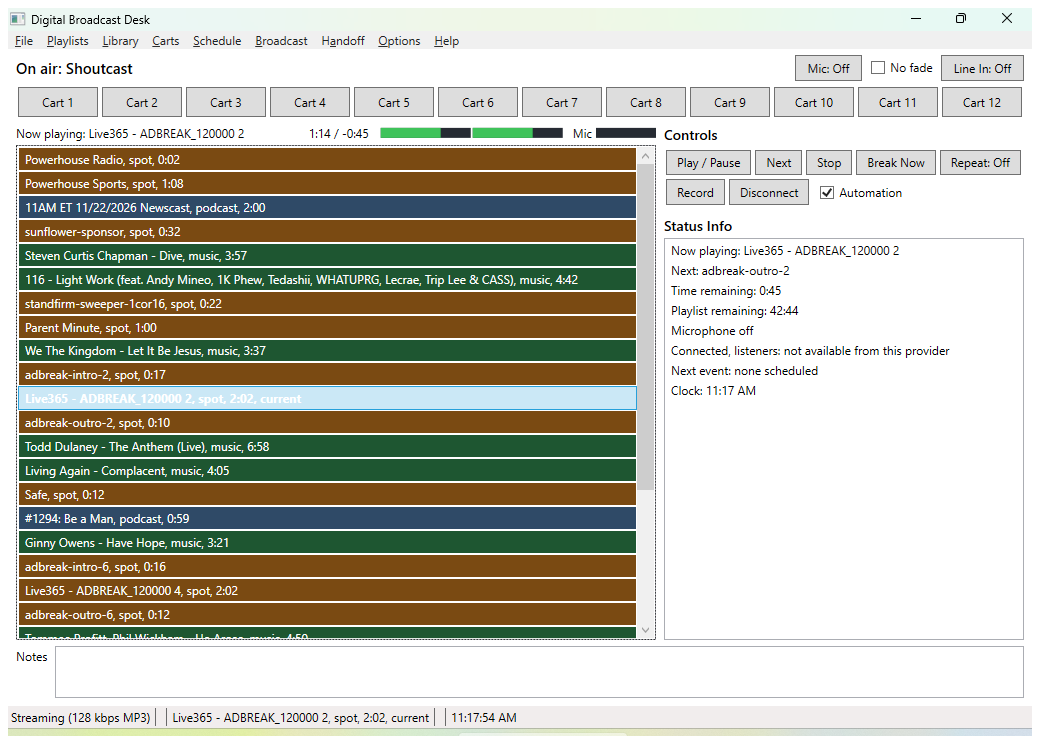
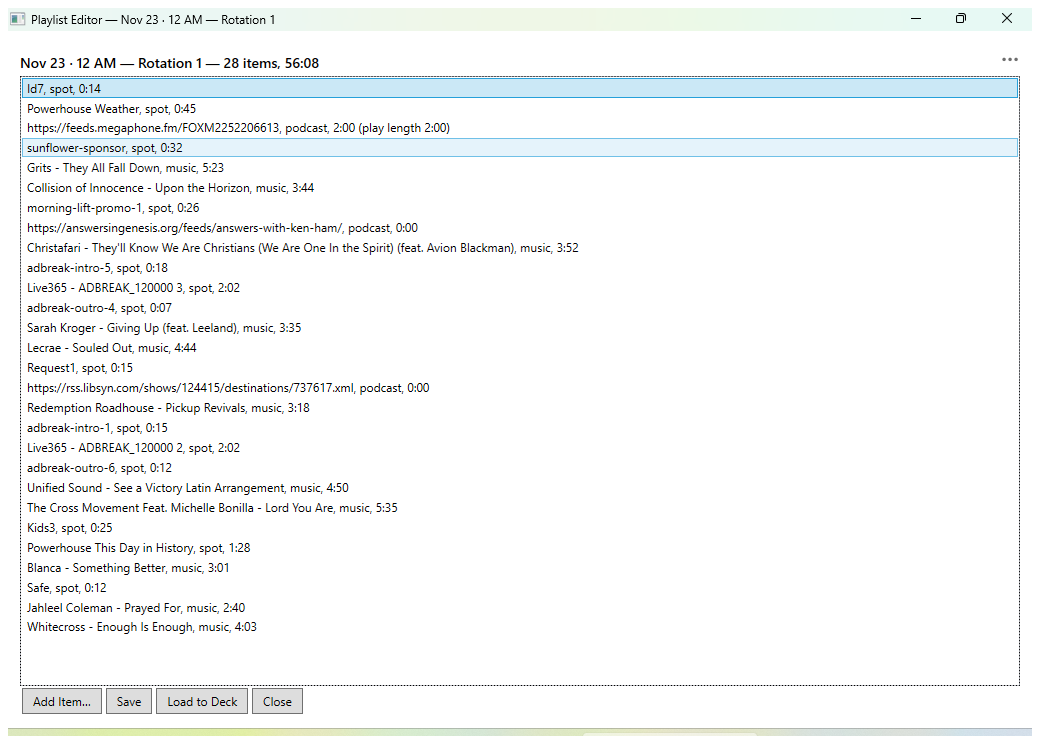
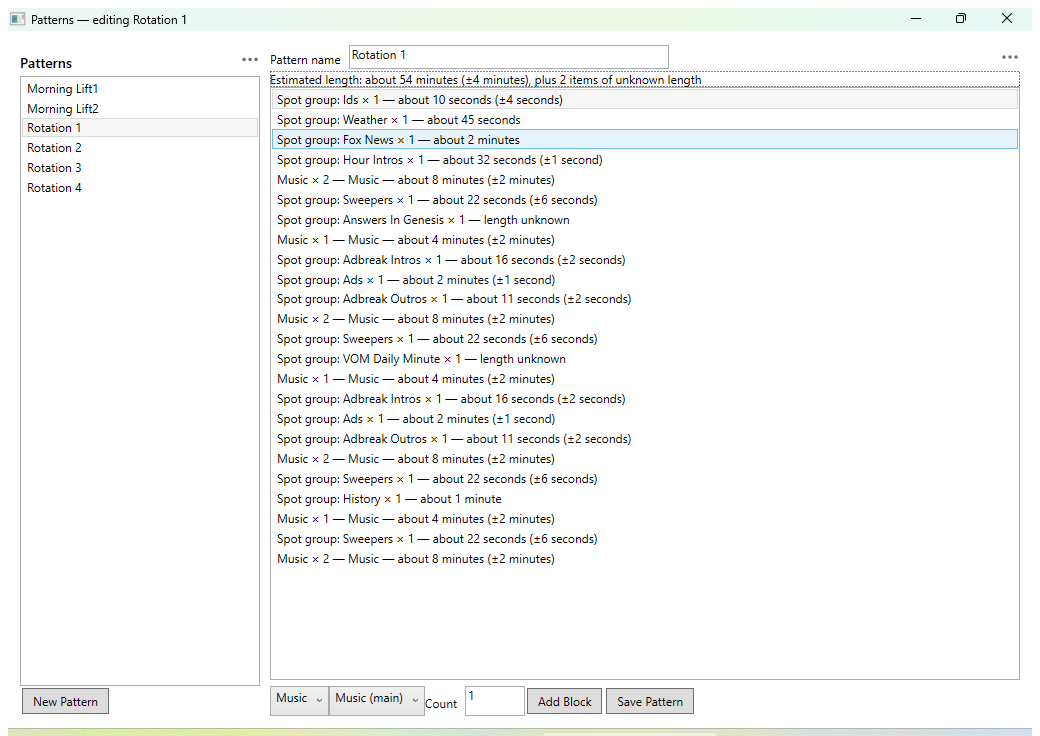
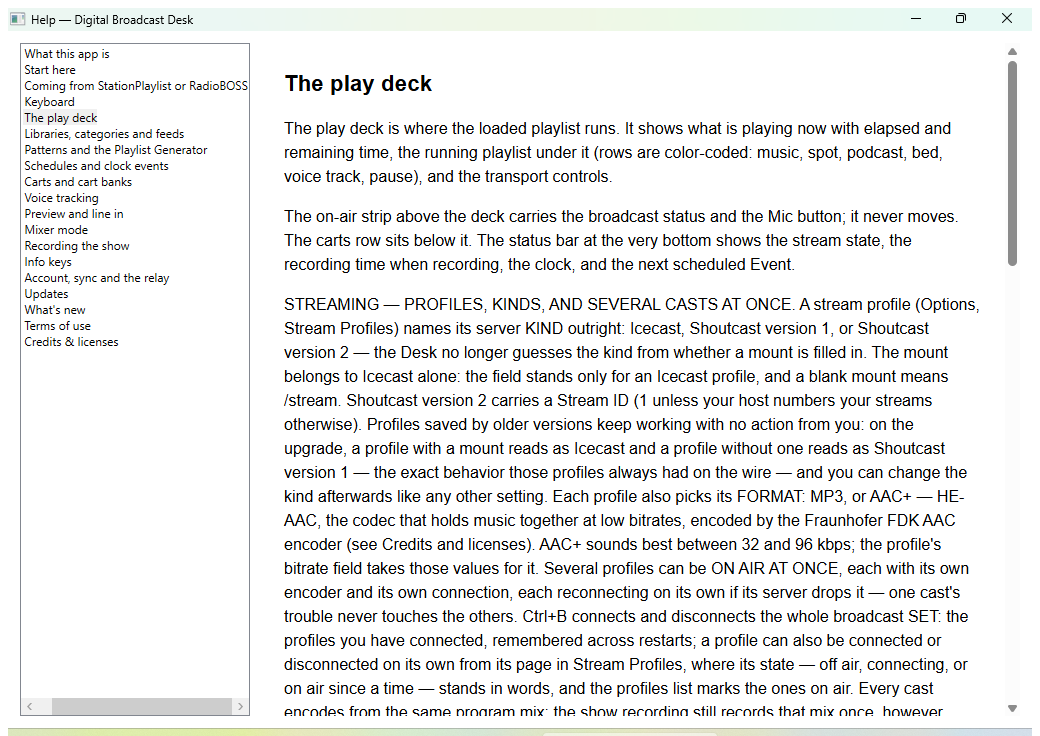
The Windows desk as it runs a real station — live screenshots from Powerhouse Radio's own station PC, station content and all.
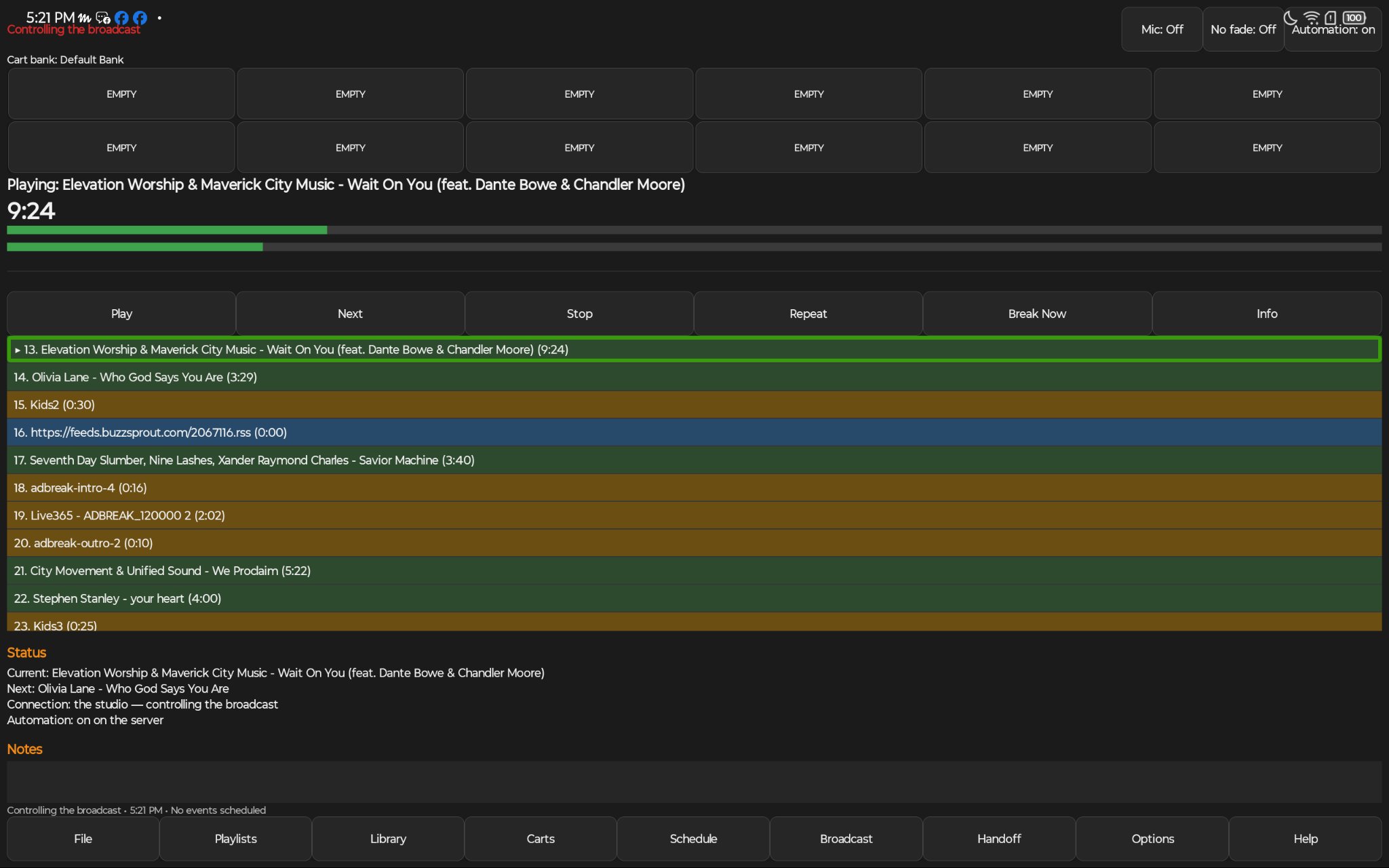
And the Android desk, in Client mode — the same station, followed and driven from an Android device.
Accounts and plans
The account services — sync between your desks, remote control, remote voice, and listener requests — run on a paid plan: $20 a year for up to five devices, or $60 a year unlimited, through the station portal. If a plan ever lapses, those services pause; the apps themselves keep working in stand-alone mode, and your data stays put.
Creating an account is step one of choosing a plan — create yours, pick the plan that fits in the station portal, and pay through Polar. The service is under active development — it may change, pause, or occasionally be unavailable.
Already have an account? Sign in to the station portal for your listener song requests: the embed code for your station's website, the request settings (thank-you message, results per page, and the embed's colors), and your waiting request queue.
The honest state of things
This is a young program, and this page won't pretend otherwise. Version 1.0.7 is the current stable release, it runs a real station every day, and it is still being actively developed. The full known-issues list lives in each app's Help, under What's New — nothing is hidden there, including the open unknowns. One example, stated plainly: on Android, a voice intro is heard on the desk's own output but is not yet carried in the stream mix; that step is still to come.
The help pages describe exactly how the desk is meant to behave. Anything that behaves differently is a bug worth reporting: in the app, Help, Report a Bug — a report always carries the diagnostics log, and reports reach support@powerhouseapps.net.
How it was built
An original program. Digital Broadcast Desk was designed and written by Powerhouse Apps. Its behavior follows the working conventions of professional broadcast playout software — playlists, segues, voice tracking, scheduling — because those conventions are how radio is done; no code was taken from any other broadcast program. Where the Desk connects to other software it speaks published, open protocols, including the Mumble voice protocol. The third-party components it builds on are open-source or properly licensed, and every one is named with its license in these credits.
That statement stands at the top of the Credits & licenses section in both apps, too — open Help in either desk and read the full list.
Verify your downloads
After downloading, check each file's checksum against the one published here. If they match, your file is exactly the file that was released — unaltered in transit.
Windows installer — BroadcastDesk-Windows-Setup-1.0.7.exe
SHA-2567db980859dc2b2db5e0ff5aee3ced07855be23384f97f0e801e0e18e93a459d0
VirusTotal: 1 of 62 engines flags it — a single machine-learning score; every other engine that returned a verdict reports it clean.
Android — broadcast-desk-v1.0.7.apk
SHA-256a2c50c9f96060da809f459a034ea682f818630fca19d1fe822f339247e093f57
Signing certificate (SHA-1): 36:36:21:48:15:4E:C1:FF:C0:0A:28:B9:78:CB:C9:B9:4C:DA:DC:F7 — the same Powerhouse Apps release key signs every release.
VirusTotal: 3 of 66 engines flag it — the standing heuristic family that has flagged every build of this app; a false-positive appeal is on file with Google for the matching Play Protect warning, and the home page explains why Play Protect warns about these apps.
Why flags like these are false positives, in plain terms: neither one is an engine finding a virus. A heuristic flag means an engine saw a pattern that merely looks unusual — and a new program that few people have downloaded yet, which records audio and streams, will always look unusual to that kind of check. A machine-learning score is one engine's statistical guess about a file it has never seen — a guess, not a detection of anything actually in the file. Every engine that scans for known, actual malware reports both files clean, and the same flags have appeared, unchanged, on build after build — which is exactly what a false positive looks like.
Permissions, explained (Android)
| Permission | Why this app needs it |
|---|---|
| Internet | Streaming out, account sync, and the remote-control and remote-voice connection between your own desks. |
| Record audio | Your microphone — live on air, and for voice tracks you record on this device. |
| Install packages | Lets the in-app updater install new versions, so the Desk can update itself. |
That's the whole list. On Windows, the Desk is a desktop program installed by the installer above; it asks for no account and no sign-in to work on its own.
Documentation
The full help lives inside both apps, under the Help menu — the same topics on Windows and Android, starting with a plain-words "Start here." The essentials:
- Transport: P play/pause, N next, S stop, B break now.
- Microphone: M with the music ducked, Shift+M without the fade.
- Voice tracking: V opens the recorder in the Play Deck and the Playlist Editor.
- Control: Ctrl+B connects or disconnects the broadcast on the station desk — and on a connected device, takes control or hands it back.
- Monitor: Ctrl+Shift+M mutes your own ears, never the stream.
- Jump to what's playing: Ctrl+J — playback never moves your place in a list on its own.